What the live page actually does
WordChop's Phonics Teaching Mode is built for live demonstration. On the page, the header says "Phonics Teaching Mode" and the subtitle reads "Type a word to see its phonics breakdown with rules." Teachers can enter one word or several words in the same search field, using spaces to separate them.
The interface also includes built-in sample words: rainbow, sunshine, elephant, cupcake, happy, bridge, phone, and table. That makes it easy to demo the tool without preparing a list first.
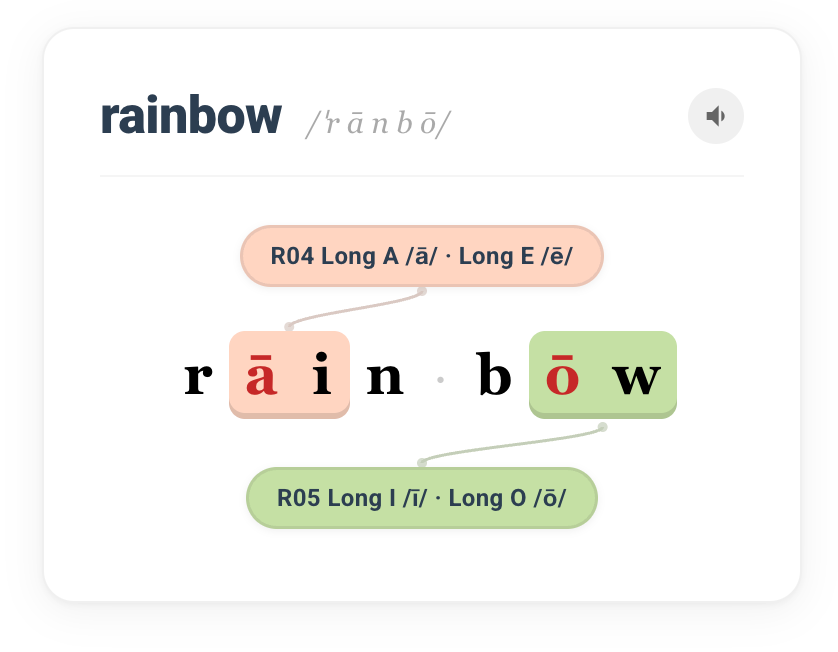
The analysis side of a real Teaching Mode card, with clickable rule labels and audio
What students see on each word card
After you analyze a word, WordChop renders it as a large visual card instead of a plain text result. Each card includes:
- The full word at the top
- A pronunciation line beside the word
- A speaker button so students can hear the word
- Color-coded chunks directly on the letters
- Rule labels such as R04 Long A /ā/ · Long E /ē/ and R05 Long I /ī/ · Long O /ō/
That matters instructionally because students are not just told a rule name. They can see exactly which letters are connected to each rule.
Use Flip Card Mode for reveal-first teaching
The live page now includes a Flip Card Mode switch. When it is on, each result card starts with a plain word-only front. Students see just the word first, with no chunking or rule labels yet.
Then, with one click, the card flips to the full analysis side. This is useful for:
- Prediction: Ask students which rule they expect before revealing the answer
- Partner practice: One student flips, the other explains the rule
- Quick checks: Show only the word first during whole-group review
The screenshot above shows the back side of the card after the flip, where students can inspect the full phonics analysis.
From one word to the full rule page
Teaching Mode is especially useful because it connects word analysis to rule review. On the live page, the rule badges on each word card are clickable, and the rule card gallery below the results contains clickable cards for R01 through R19.
That means you can begin with a concrete word, then move straight into the matching rule lesson without leaving the teaching flow. For example:
- Analyze rainbow and discuss why the first chunk matches R04
- Click R04 to open the full rule explanation page
- Return to Teaching Mode and compare it with sunshine, phone, or bridge
Quick ways to use it in class
- Warm-up routine: Start with one sample word and ask students to predict the rule before clicking Analyze.
- Contrast lesson: Enter two or three words together so students can compare multiple patterns on one screen.
- Flip reveal: Turn on Flip Card Mode and reveal the analysis only after students make a guess.
- Rule review: Open a rule card from the gallery and use it as a quick mini-lesson after the word analysis.
- Pronunciation check: Use the speaker button to reinforce accurate oral reading after students identify the chunks.
Try the same words from the live page
These links open Teaching Mode directly with real sample words from the page:
If you want to model multiple words at once, open Teaching Mode with a short word set and compare the cards side by side.
Why this is different from a plain word lookup
A typical word lookup tool tells you the answer. Teaching Mode is more useful for instruction because it presents the answer in a format you can point at, discuss, and reuse. The page combines word analysis, Flip Card Mode, rule naming, audio support, and click-through rule cards in one classroom-friendly workflow.
If you teach phonics in whole-group lessons, small groups, or tutoring sessions, this mode gives you a fast way to move from "What word are we reading?" to "Which rule explains it?"